

Bulk Operations Pro
Working with multiple work items at once can save you significant time.
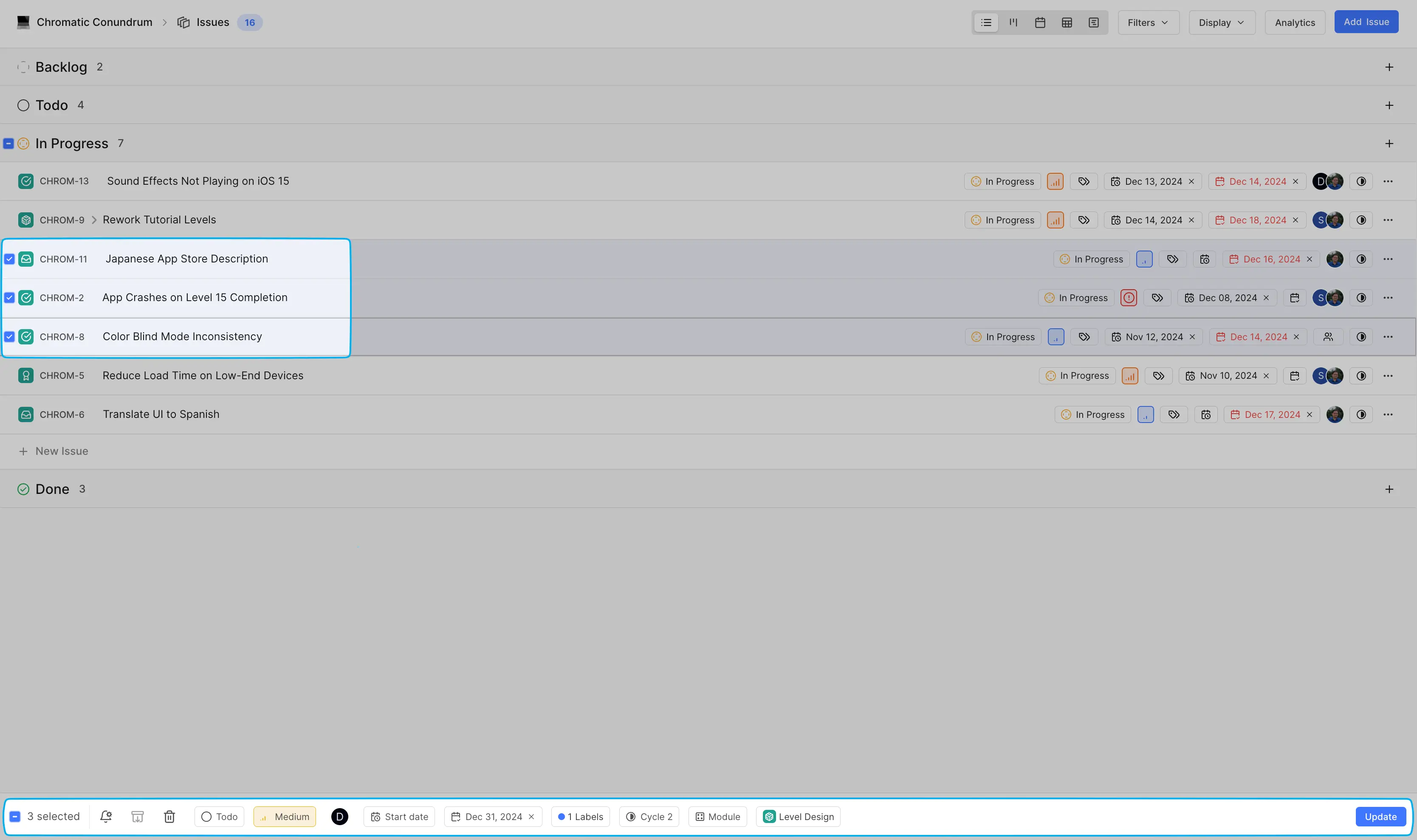
Bulk edit work items
To perform bulk operations:
- Make sure you're in either the List or Table layout - bulk operations aren't available in other layouts.
- Select work items by clicking the checkbox next to each one, or use the select all checkbox at the top of the list.
- After selecting work items, update the available properties at the bottom of the screen.
- Click the Update button to apply your modifications. Until you click this button, your changes won't be saved.
Available bulk operations
You can modify several properties across multiple work items simultaneously:
- Change the state (like moving work items from "In Progress" to "Done")
- Update priority levels
- Assign or reassign team members
- Add work items to cycles
- Change work item types
- Apply or remove labels
- Set or modify modules
- Add or update start and due dates
Copy work items
Select the work items you want, then choose Make a copy from the bulk actions. Pick a destination project — it defaults to the current one — and confirm.
Which properties survive the copy depends on whether the destination is the same project or a different one. See What gets copied for the full field-by-field breakdown; bulk copies follow the same rules as copying a single work item.
A few things specific to copying in bulk:
- You can copy up to 1000 work items at a time.
- You need permission to create work items in the destination project.
- The copy runs in the background, so the new work items appear in the destination project shortly after you confirm rather than all at once.
- If the selection contains epics and the destination project has no Epic type, those epics are skipped and the rest of the selection still copies.
Subscribe to multiple work items
If you need to keep track of several work items at once, you can subscribe to multiple work items in a single operation. This ensures you'll receive notifications about any updates to those work items.
Manage work item lifecycle
You can also perform bulk management actions:
- Archive multiple work items when they're no longer active but you want to preserve their history.
- Delete multiple work items if they're no longer needed (note: this action cannot be undone)
Tips for bulk operations
- Take advantage of filters to select related work items more easily.
- Double-check your selection before performing destructive actions like deletion.
- Consider using bulk operations during project transitions or when doing major reorganization of work